Tips
How to Make a PowerPoint Theme: A Step-by-Step Guide
•
6 Minutes

Learning how to make a PowerPoint theme can save hours of repetitive formatting while helping every presentation look more consistent and professional. Instead of choosing fonts, colors, and styles slide by slide, a custom theme creates a visual system you can reuse across an entire deck. In this guide, you’ll learn how PowerPoint themes work, how to build one step by step, and how to save it so you can apply the same visual identity to future presentations.
What Is a PowerPoint Theme?
A PowerPoint theme is a coordinated set of design settings that controls the overall appearance of your presentation. It typically includes theme colors, heading and body fonts, effects, and background styles.
When you apply a theme, PowerPoint uses those settings throughout your slides. This makes it much easier to maintain consistency than manually formatting every individual object.
Microsoft distinguishes themes from templates: a theme mainly defines visual styling, while a template can also include layouts, placeholders, instructions, and other reusable content structures.
If you are deciding whether you need a reusable design system at all, our guide to Pros Cons Template PowerPoint explains where templates save time and where they can become restrictive.
How to Make a PowerPoint Theme Step by Step
The best themes are not simply collections of attractive colors and fonts. They create consistent design rules that work across titles, charts, diagrams, images, and different types of content.
Here is how to make a PowerPoint theme that remains practical when you start building real presentations.
Decide on your visual direction first. Before opening PowerPoint’s theme settings, define how you want the presentation to feel. Consider your brand personality, target audience, presentation environment, and the type of information you normally present. A corporate reporting deck may need a restrained visual system, while a creative keynote may allow stronger typography and more expressive colors.
Start with a clean presentation or existing theme. You do not have to build everything from zero. PowerPoint allows you to select an existing theme and modify its colors, fonts, effects, and backgrounds. Starting with a simple theme can make the setup process faster while still giving you control over the final appearance.
Create your theme color palette. Go to Design > Variants > Colors > Customize Colors in the Windows desktop version of PowerPoint. Define colors for backgrounds, text, accents, and hyperlinks. Choose colors based on how they will actually function rather than simply selecting several brand colors you like. Microsoft’s current theme system includes text/background colors, accent colors, and hyperlink colors.
Set your heading and body fonts. Typography plays a major role in making a theme feel intentional. In PowerPoint, you can define coordinated fonts for headings and body text so that formatting stays consistent throughout the presentation. If you are unsure which typefaces work well on slides, read our guide to good fonts for presentations.
Choose theme effects carefully. PowerPoint theme effects influence elements such as lines, fills, shadows, and other graphic treatments. Select an effect set that supports your visual identity without making the deck feel overly decorative. Microsoft allows you to choose an existing effects set, although you cannot create an entirely custom effects set in the same way you can customize theme colors.
Use Slide Master to control the system. Open View > Slide Master to manage the presentation’s global design structure. This is where you can control recurring formatting and work with the layouts beneath the main master. If you are unfamiliar with this feature, our guide to the definition of slide master explains how masters and layouts work together.
Create useful slide layouts. Your theme controls much of the visual styling, but a strong presentation system also needs layouts that work with real content. Consider the slides your team creates most often: title slides, section dividers, text-and-image slides, charts, comparisons, timelines, and closing slides. Building these as reusable layouts turns the theme into a more practical presentation system.
Save the finished theme. When your colors, fonts, effects, and other settings are ready, go to View > Slide Master > Themes > Save Current Theme. PowerPoint saves the custom theme as a .thmx file and adds it to your custom themes so you can apply it to other presentations.
Test the theme with real slides. Do not consider the theme finished after testing only a title slide. Build several realistic slides containing long headlines, charts, images, tables, diagrams, and different amounts of text. Problems that are invisible in an empty theme often become obvious once real content is added.
Build Theme Colors for Real Presentation Content
One of the most common mistakes when creating a theme is choosing colors without assigning them specific roles.
Instead, decide which color will be used for primary text, backgrounds, highlights, charts, secondary information, and calls to action. That creates a system rather than a random palette.
Pay particular attention to PowerPoint’s accent colors. Charts, SmartArt, shapes, and other objects can inherit theme colors automatically. A poorly organized theme palette may therefore produce confusing charts or unexpected color combinations later.
Contrast matters too. A color combination may look attractive on your monitor but become difficult to read on a projector or smaller screen.
For additional principles that help slides remain clear and professional, see our guide to powerpoint rules for presentations.
Use Typography as a System, Not Decoration
Good theme typography should make formatting decisions easier.
Choose a heading font with enough personality to establish hierarchy, then pair it with a highly readable body font. Avoid selecting several typefaces simply to create variety. Consistency usually produces a more professional result.
Your theme fonts also need enough styles and weights for actual presentation content. Think about headlines, subheadings, labels, chart annotations, quotations, and body copy before committing to a font combination.
Most importantly, use the theme’s designated heading and body fonts rather than manually changing fonts on individual slides. Manual overrides undermine the purpose of creating a reusable theme.
PowerPoint Theme vs. PowerPoint Template
Themes and templates are closely related, but they solve different problems.
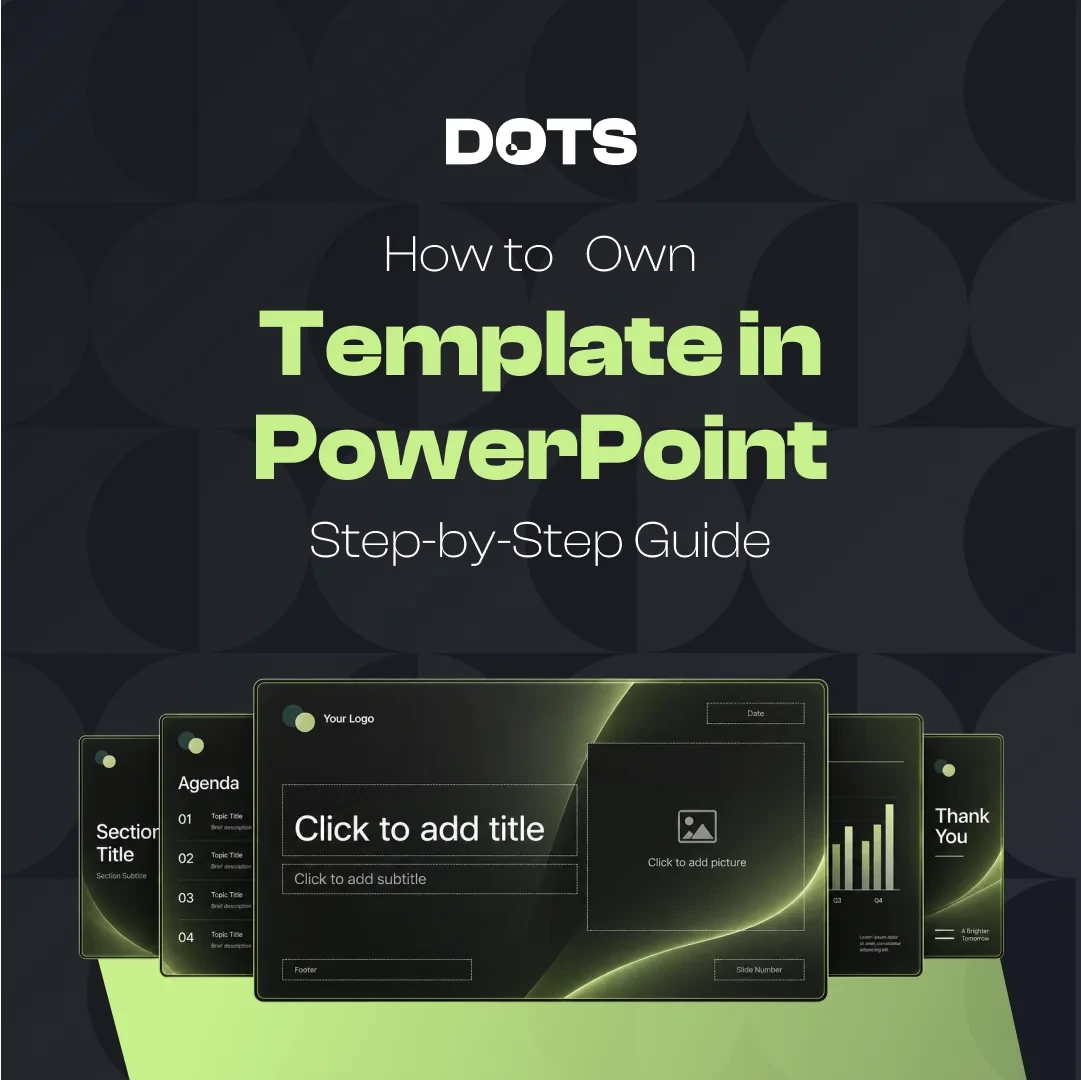
A theme defines visual characteristics such as colors, fonts, effects, and backgrounds. A template can include those theme settings while also providing layouts, placeholders, example slides, and structures that help someone build a complete presentation.
Think of the theme as the visual language and the template as the practical toolkit built with that language.
If only one experienced designer is creating presentations, a theme may provide enough consistency. If dozens of employees need to build presentations independently, a full template with carefully designed layouts is usually much more useful.
Common Mistakes When Creating a PowerPoint Theme
A theme can technically work while still being difficult to use.
Using too many brand colors is one common problem. Your corporate identity may contain eight colors, but that does not mean every color deserves equal importance inside PowerPoint. Give your strongest colors clear jobs and use secondary colors selectively.
Another mistake is choosing fonts that look impressive but are difficult to read, unavailable to other users, or unreliable across devices.
Themes also fail when they are designed around one perfect example slide. A useful theme has to survive imperfect real-world content, including longer titles, awkward images, complicated data, and team members with different levels of PowerPoint experience.
Finally, avoid manually styling everything after creating the theme. If users constantly need to override the theme, the underlying system probably needs improvement.
Turn Your Theme Into a Scalable Presentation System
Knowing how to make a PowerPoint theme is a valuable starting point, but organizations that create presentations regularly often need more than global colors and fonts.
A scalable system can include a structured Slide Master, predefined layouts, chart styles, icon libraries, image treatments, spacing rules, and clear guidance for common slide types.
This approach helps people spend less time deciding how slides should look and more time improving what those slides communicate.
Our smart guide powerpoint article explores how more intentional PowerPoint systems can make presentations easier to build and understand.
When Should You Create a Custom PowerPoint Theme?
A custom theme is particularly valuable when presentations are created repeatedly.
For example, a company may use the same visual identity across sales decks, quarterly reports, training presentations, conference materials, board decks, and internal updates. Without a theme, every new presentation creates another opportunity for fonts, colors, and formatting to drift.
A properly configured theme gives everyone the same starting point.
However, if multiple users need to produce polished presentations without design expertise, consider going beyond the theme itself. Ready-made layouts and content structures can make the system significantly easier for non-designers to use.
Create a Theme That Works Beyond One Deck
The real value of a PowerPoint theme is not that it makes one presentation look better. It is that it creates a visual foundation you can reuse.
Start with a clear color system, define purposeful typography, use Slide Master correctly, create layouts based on real presentation needs, and test everything with realistic content. Once the system works, save your theme so future decks can begin with the same visual standards.
If your team needs more than a basic theme, Dots Presentations creates custom presentation templates with brand colors, typography, master slides, charts, diagrams, and reusable layouts built around the way your team actually presents. Visit our presentation templates service to create a scalable system that keeps every deck consistent, polished, and easier to build.