Presentations
Definition of Slide Master: What It Means in PowerPoint
•
6 Minutes
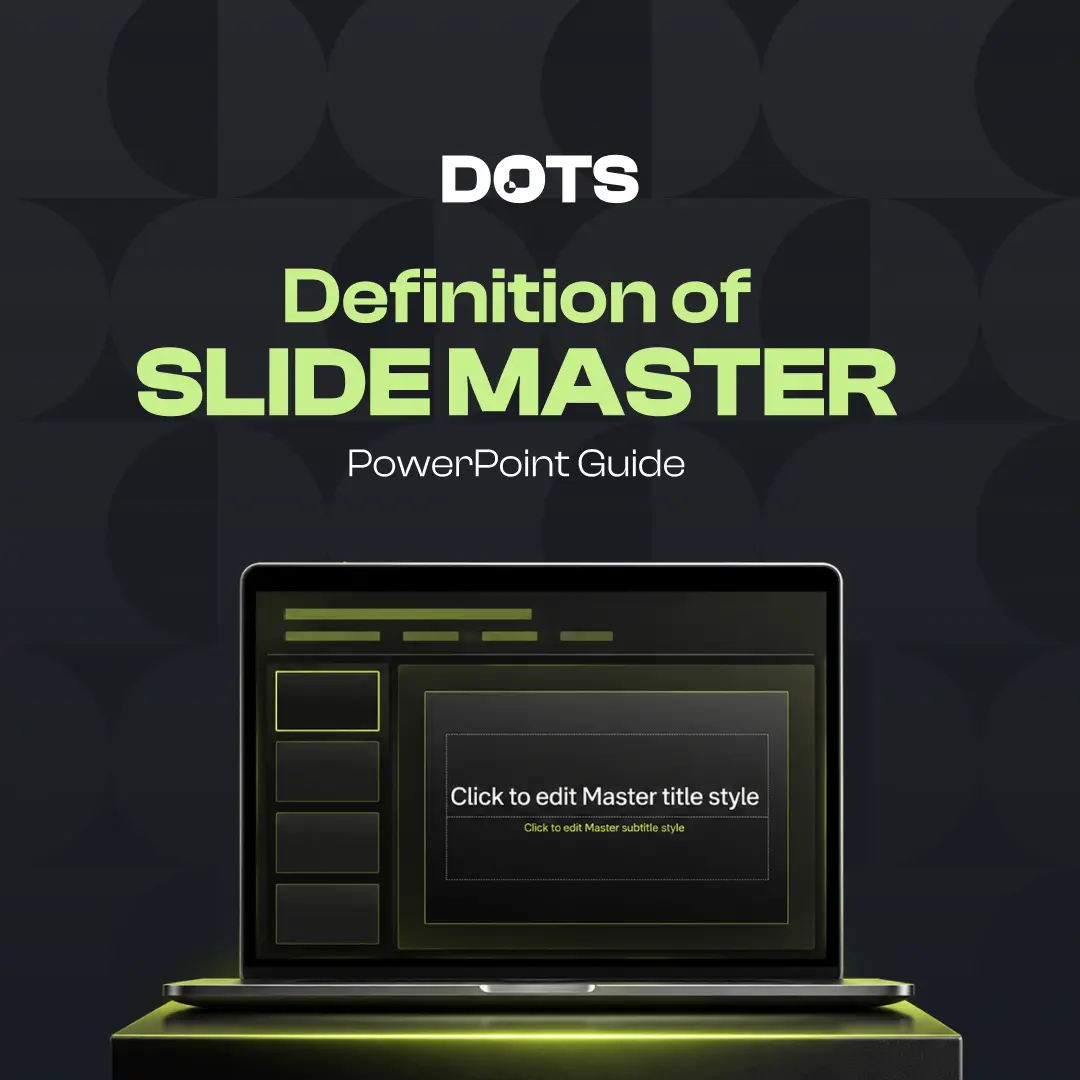
The definition of slide master is simple: it is the main layout and design control center inside PowerPoint. A slide master stores the fonts, colors, logos, placeholders, backgrounds, and layout rules that apply across a presentation. Instead of editing every slide one by one, you can use the slide master to keep your deck consistent, polished, and easier to update.
What Is the Definition of Slide Master?
The definition of slide master refers to the top-level slide template that controls the overall appearance of your PowerPoint presentation.
Think of it as the design blueprint behind your deck. When you set up a slide master correctly, every slide can follow the same visual rules without needing manual formatting each time.
A slide master usually controls:
• Font styles and sizes
• Brand colors
• Logo placement
• Background design
• Footer elements
• Title and body text placeholders
• Layout variations for different slide types
This is especially useful for business presentations, sales decks, investor decks, training materials, and branded company templates.
Why Slide Masters Matter
Slide masters matter because they create consistency. Without one, a presentation can quickly become messy, especially when multiple people work on the same file.
You may notice different font sizes, inconsistent title positions, random spacing, or mismatched colors. These small issues can make a presentation feel less professional, even when the content is strong.
A well-built slide master helps every slide look like it belongs to the same system. This makes the presentation easier to read, easier to manage, and more credible in front of an audience.
Slide Master vs. Slide Layout
A slide master and a slide layout are related, but they are not the same thing.
The slide master is the main parent design. It controls the global styling for the presentation.
Slide layouts are the individual design options that sit under the master. For example, you might have layouts for:
Title slides
Section divider slides
Text-heavy slides
Image slides
Chart slides
Comparison slides
Closing slides
The master defines the overall rules, while layouts give you practical slide formats to use throughout the deck.
How a Slide Master Works in PowerPoint
In PowerPoint, you can access the slide master by going to View > Slide Master.
Once inside Slide Master view, you can edit the main master slide and its related layouts. Changes made to the main master often affect the entire presentation. Changes made to a specific layout only affect slides using that layout.
For example, if you add a company logo to the master, it can appear across all slides. If you only add it to a title slide layout, it will appear only on slides using that layout.
This gives you control over both consistency and flexibility.
Common Elements Controlled by a Slide Master
A slide master can control many parts of a presentation’s visual system. The most common elements include typography, color, spacing, and recurring design components.
Typography settings help make sure headings, subheadings, and body text follow the same style. Color settings ensure the deck stays aligned with the brand. Placeholders help users add content without breaking the design.
A strong slide master can also include branded elements such as page numbers, section markers, icons, and footer details.
When used well, these elements make the presentation feel intentional rather than manually assembled.
Benefits of Using a Slide Master
Using a slide master saves time, especially when working on large presentations.
Instead of changing the font or logo on every slide, you can update the master once and apply the change across the deck. This is helpful when a brand changes, a template needs refreshing, or a presentation must be adapted for a new audience.
A slide master also helps protect design quality. It gives teams a structured system to follow, reducing the risk of inconsistent formatting.
For companies that create frequent presentations, this can make a major difference in speed and quality.
When Should You Use a Slide Master?
You should use a slide master whenever a presentation needs to look consistent, professional, or branded.
It is especially valuable for:
Corporate presentation templates
Sales decks
Pitch decks
Investor presentations
Training decks
Webinar slides
Conference presentations
Internal reporting decks
Even smaller presentations can benefit from a slide master if they need to look clean and organized.
For high-stakes decks, a slide master is not just a technical feature. It is part of the presentation’s design system.
Slide Master Mistakes to Avoid
A slide master can make a presentation stronger, but only if it is built properly.
One common mistake is creating too many layouts. This can confuse users and make the deck harder to manage. Another mistake is using placeholders that do not match real content needs.
Poor spacing is also a problem. If titles, charts, and body text are not aligned properly in the master, the entire deck may feel inconsistent.
A good slide master should be flexible enough for real content but strict enough to protect visual consistency.
Slide Masters and Professional Presentation Design
In professional presentation design, slide masters are often used to build scalable presentation systems.
This means the deck is not designed as a collection of separate slides. Instead, it is built as a reusable framework with clear rules for layout, hierarchy, and brand expression.
At Dots Presentations, this kind of structure is especially important for business decks that need to communicate clearly and look credible. A strong master layout helps presenters stay focused on the message rather than fixing formatting issues.
Is a Slide Master the Same as a PowerPoint Template?
A slide master is part of a PowerPoint template, but it is not the entire template.
A PowerPoint template may include slide masters, sample slides, theme colors, custom fonts, icons, charts, and example layouts. The slide master is the system that controls how those layouts behave.
If you want to understand PowerPoint structure more broadly, this smart guide powerpoint article can help explain how better slide systems support clearer presentations.
Simple Example of a Slide Master
Imagine a company wants every presentation to use the same design style.
The slide master might define:
A navy title style
A consistent logo in the corner
A fixed footer position
Standard chart colors
Pre-built layouts for title, content, and closing slides
Once this is set up, team members can create new slides without redesigning from scratch. They simply choose the right layout and add their content.
This keeps the deck on-brand and reduces manual formatting work.
Final Thoughts on the Definition of Slide Master
The definition of slide master is more than a PowerPoint feature. It is the foundation of a consistent, scalable, and professional presentation.
A slide master helps control the visual rules of a deck, making it easier to update, easier to use, and easier for an audience to follow.
If your team creates frequent business presentations, a well-built slide master can save time and improve the quality of every deck you produce.
Need a Better PowerPoint Template?
If your presentations feel inconsistent, hard to edit, or off-brand, Dots Presentations can help. Our presentation design service creates clean, professional PowerPoint decks and reusable templates built for real business use.
Visit our presentation design service page to see how we can help turn your slides into a stronger communication tool.