Tips
Smart Guide PowerPoint: How to Create Clearer, More Useful Presentations
•
8 Minutes
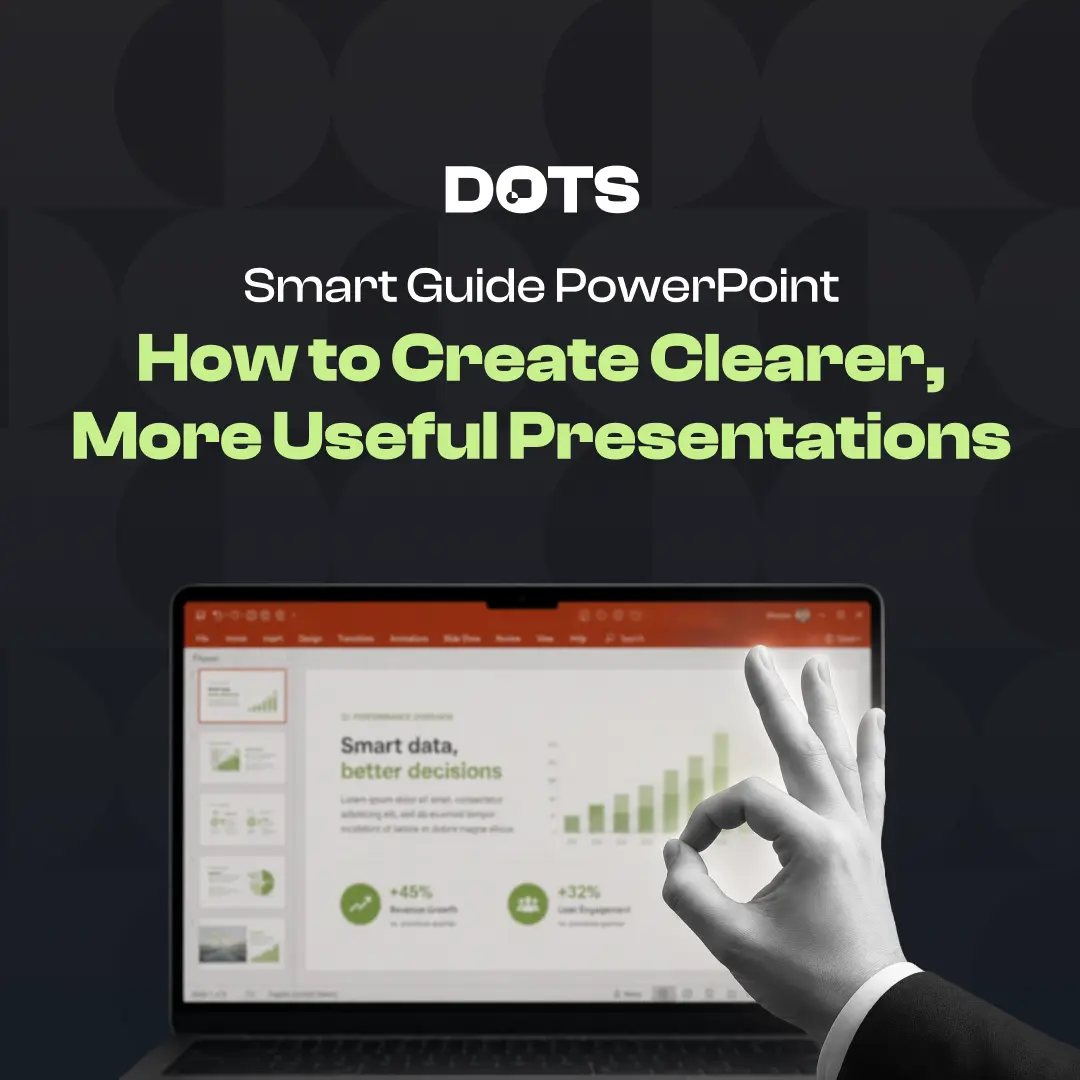
A smart guide PowerPoint helps you create presentations that are easier to follow, faster to design, and more effective for your audience. Whether you are building a sales deck, investor presentation, training deck, or company update, smart guides can help align content, structure slides, and create a more polished visual experience.
What Is a Smart Guide PowerPoint?
A smart guide PowerPoint usually refers to the visual alignment guides that appear while you move objects on a slide. These guides help you position text, images, icons, charts, and shapes with better accuracy.
In PowerPoint, smart guides show up automatically when objects align with each other or with the slide layout. They help you keep spacing consistent without manually measuring every element.
The term can also refer more broadly to a structured PowerPoint guide that helps teams build smarter, clearer presentations. In both cases, the goal is the same: better organization, cleaner layouts, and improved communication.
Why Smart Guides Matter in PowerPoint
Small alignment issues can make a presentation feel less professional. When text boxes, charts, and visuals are slightly misaligned, the audience may not consciously notice every detail, but they will feel that the deck lacks polish.
Smart guides help prevent that problem by giving you visual cues while designing. They make it easier to create slides that feel balanced and intentional.
For business presentations, this matters because design affects trust. A well-aligned deck looks more credible, especially when presenting to clients, investors, executives, or decision-makers.
How to Use Smart Guides in PowerPoint
PowerPoint smart guides usually appear as dashed lines when you drag an object near another object or a slide boundary. These lines show when elements are aligned vertically, horizontally, or evenly spaced.
To use them effectively:
Move objects slowly so the guide lines appear clearly.
Align headlines, body text, and visuals to a consistent grid.
Use equal spacing between repeated elements.
Keep margins consistent across slides.
Avoid placing objects too close to the slide edges.
Smart guides are most useful when combined with a clear slide structure. Alignment alone will not fix a confusing presentation, but it will make strong content easier to understand.
Smart Guide PowerPoint Tips for Better Slide Design
A smart guide PowerPoint workflow should go beyond simply aligning objects. The best presentations use smart guides as part of a larger design system.
Start by defining a consistent layout. Decide where headlines, supporting text, charts, and visuals should usually appear. This gives your presentation a predictable rhythm.
Next, use smart guides to maintain spacing. For example, if you have three content cards on a slide, make sure the space between each card is even. This makes the slide easier to scan.
Finally, keep each slide focused on one key message. A clean layout will only work if the content itself is clear.
Common Mistakes When Using Smart Guides
One common mistake is relying on smart guides while ignoring hierarchy. A slide can be perfectly aligned but still confusing if every element looks equally important.
Another mistake is overloading the slide. Smart guides can help organize content, but they cannot make too much information easy to digest.
Many teams also use inconsistent layouts from slide to slide. One slide may have a headline at the top left, while the next has it centered, and another uses a completely different structure. This weakens the flow of the presentation.
To avoid this, use smart guides with a consistent design system, not as a quick fix at the end.
Smart Guides vs. Professional Presentation Design
Smart guides are helpful, but they are only one part of strong presentation design. They improve alignment and spacing, but they do not solve messaging, storytelling, visual hierarchy, or brand consistency.
Professional presentation design looks at the full deck as a communication tool. It considers what the audience needs to understand, what action they should take, and how each slide supports that outcome.
At Dots Presentations, we focus on creating business presentations that are not just visually clean, but strategically designed. That means every slide has a clear role, a strong message, and a polished visual structure.
When Should You Use a Smart Guide PowerPoint Approach?
A smart guide PowerPoint approach is useful whenever your presentation needs to look clear, consistent, and professional.
It is especially helpful for:
Sales presentations
Pitch decks
Investor decks
Training presentations
Internal strategy decks
Conference presentations
Executive updates
These types of presentations often contain complex information. Smart guides help organize that information visually so your audience can follow the message more easily.
How to Make Your PowerPoint Look Smarter
To make your PowerPoint look smarter, start with structure before design. Decide the purpose of each slide and remove anything that does not support the main message.
Then improve the visual system:
Use consistent margins.
Align text and visuals carefully.
Keep font sizes consistent.
Use fewer colors.
Make charts easier to read.
Use whitespace intentionally.
Repeat layouts where appropriate.
Smart guides can support all of these decisions. They help turn a messy slide into a cleaner, more professional one.
Final Thoughts on Smart Guide PowerPoint Design
A smart guide PowerPoint can help you build slides that feel cleaner, more balanced, and easier to read. But smart guides work best when they support a clear message and a strong presentation structure.
If your deck needs to influence decisions, win clients, raise investment, or communicate strategy, alignment is only the beginning. The full presentation needs to be designed around clarity, credibility, and audience action.
Need a sharper, more professional deck? Visit our presentation design service page to see how Dots Presentations can help turn your content into a presentation that looks clear, polished, and ready for high-stakes meetings.