Insights
How to Create Own Template in PowerPoint: Step-by-Step Guide
•
7 Minutes
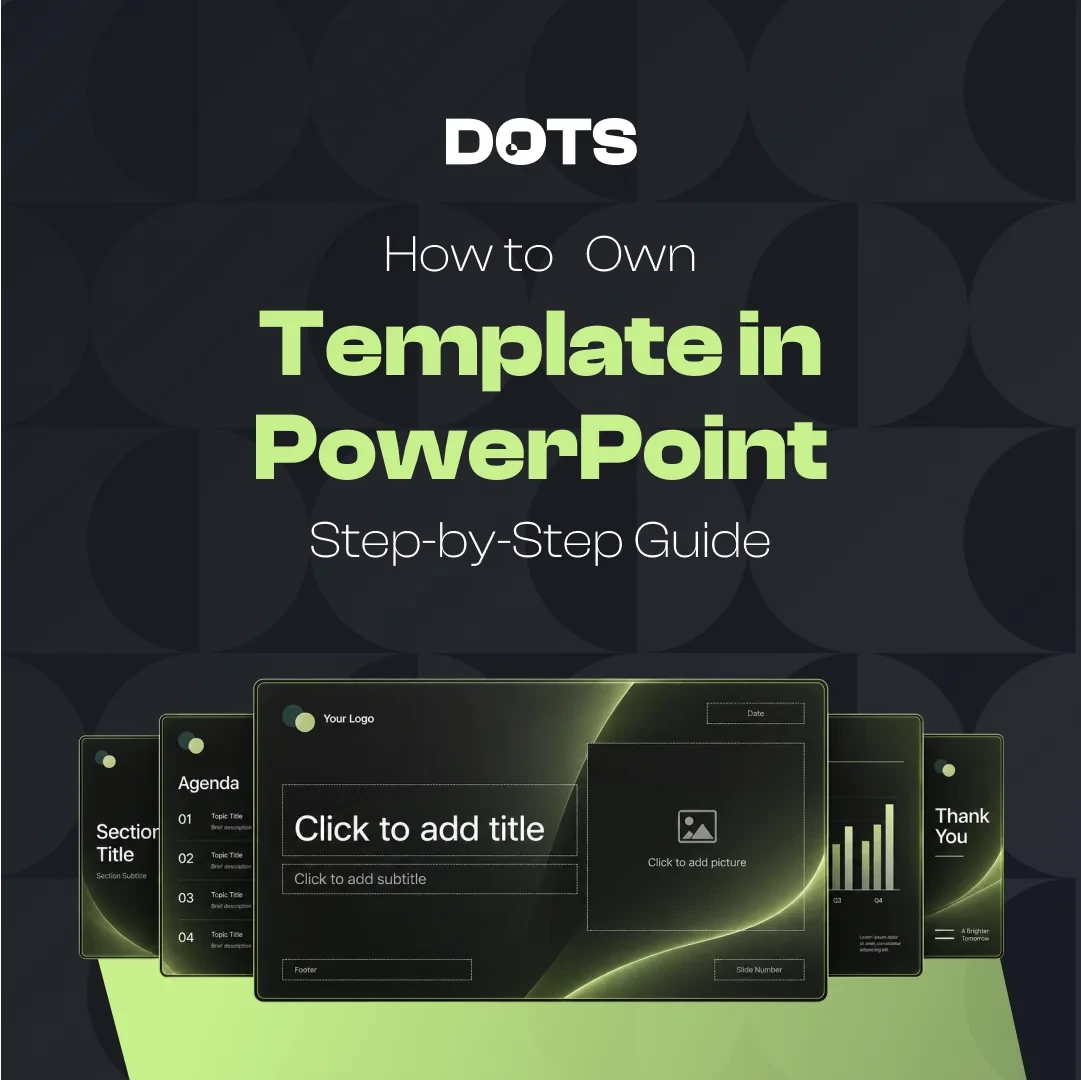
If you regularly build presentations for the same company, project, or brand, learning how to create own template in PowerPoint can save hours of repetitive formatting. A well-built template gives you predefined colors, fonts, layouts, placeholders, and visual rules so every new presentation starts from a consistent foundation. Instead of redesigning slides from scratch, you can focus on the message while PowerPoint handles much of the formatting automatically.
How to Create Own Template in PowerPoint Step by Step
The best way to create a reusable PowerPoint template is to build it through Slide Master rather than formatting individual slides manually. Microsoft currently recommends starting with a blank presentation, opening Slide Master, customizing the master and its associated layouts, and then saving the finished file as a PowerPoint Template (.potx).
1. Start With a Blank Presentation
Open PowerPoint and select File > New > Blank Presentation. Starting with a clean file makes it easier to control the design system without inheriting unwanted formatting from another deck.
Before designing layouts, choose your slide dimensions. Go to Design > Slide Size > Custom Slide Size and select the appropriate size and orientation. For most business presentations, widescreen 16:9 is the practical choice because it works well with modern displays and virtual meeting platforms. Microsoft recommends setting slide size before building your master layouts.
2. Open Slide Master View
Next, select View > Slide Master. The large thumbnail at the top represents the master slide, while the smaller layouts underneath control different slide types.
Changes made to the master can influence multiple layouts, making this area the foundation of your template. If Slide Master is unfamiliar, our guide to the definition of slide master explains how masters and layouts work together.
This step is essential when learning how to create own template in PowerPoint because formatting slides individually will not give you the same level of consistency or reusability.
3. Set Your Brand Colors and Fonts
Define the visual system before creating dozens of layouts. Choose the primary and secondary colors your presentations will use, along with colors for backgrounds, charts, highlights, and supporting elements.
Then establish a clear typography hierarchy. You may have one font for headlines and another for body text, but they should remain consistent throughout the template. Choosing readable fonts is especially important because presentations are often viewed from a distance. Our guide to good fonts for presentations can help you choose practical options.
A strong template should make the correct design choice the easiest choice for the presenter.
4. Design the Main Slide Master
Use the main Slide Master for elements that should remain consistent throughout most of the deck. These may include brand fonts, default text formatting, background treatments, logos, footer positioning, and recurring visual elements.
Avoid filling the master with decorative objects simply because space is available. Every persistent element reduces the usable area on future slides.
Your goal is not to design one beautiful presentation. It is to build a flexible system that can support many presentations without becoming repetitive. Following sensible PowerPoint rules for presentations can help you maintain hierarchy, readability, and consistency as the system grows.
5. Create Useful Slide Layouts
The layouts underneath the Slide Master are where your template becomes genuinely useful. Instead of creating variations for every possible situation, focus on the slide types your team uses repeatedly.
Useful layouts may include:
Title slide
Section divider
Title and content
Two-column comparison
Full-image slide
Quote or statement slide
Data or chart slide
Timeline
Process or framework slide
Team or profile slide
Closing or CTA slide
Each layout should solve a recognizable communication problem. A template with 20 thoughtful layouts can often be more useful than one with 100 nearly identical options.
6. Add and Configure Placeholders
Placeholders define where users should insert text, images, charts, videos, or other content. In Slide Master view, select a layout and use Insert Placeholder to add the appropriate content area. Microsoft supports placeholders for several content types and allows them to be resized and repositioned directly on the layout.
Use placeholders wherever possible instead of drawing empty boxes and expecting users to manually position content.
For example, a case-study layout could contain a headline placeholder, a short description area, a metric placeholder, and an image placeholder. When someone creates a slide from that layout, the intended hierarchy is already clear.
7. Build Flexibility Into the Template
A PowerPoint template should create consistency without forcing every slide to look identical. Give users enough variation to handle different content while keeping alignment, typography, spacing, and visual hierarchy controlled.
You might create a light and dark section divider, several image arrangements, or different data layouts that share the same design logic.
The important distinction is between useful flexibility and unnecessary variety. Too many options can make a template harder to use. If you are deciding whether a standardized template is appropriate for your workflow, our article on pros and cons of PowerPoint templates explores where templates help and where they can become restrictive.
8. Remove Layouts You Do Not Need
PowerPoint may include default layouts that do not fit your template. Delete unnecessary layouts so users are not presented with irrelevant choices every time they select New Slide.
Also check each remaining layout for redundant text boxes, unused placeholders, inconsistent spacing, and inherited formatting.
A streamlined layout library makes the template faster to navigate and reduces the likelihood that users will choose the wrong format. The final collection should feel intentional rather than like a mix of PowerPoint defaults and custom designs.
9. Test the Template With Real Content
Before saving the final version, build several sample slides using realistic content. Test long headlines, short headlines, charts, large images, bullet lists, numbers, quotations, and different amounts of body copy.
This reveals problems that are easy to miss when designing empty layouts.
Pay particular attention to:
Whether text remains readable
How images crop inside placeholders
Whether charts fit comfortably
Whether spacing stays consistent
Whether layouts work with more or less content
Whether users can understand each layout without instructions
If a layout only works with one exact amount of content, it may be too rigid for everyday use.
10. Save the File as a PowerPoint Template
When your layouts are complete, exit Slide Master view and save the file as a template rather than a normal presentation.
On Windows, use File > Save As or Save a Copy, then select PowerPoint Template as the file type. PowerPoint saves standard templates using the .potx format and typically directs them to the Custom Office Templates folder.
To create a new presentation from the template later, go to File > New and look under Personal or Custom, depending on your version of PowerPoint.
PowerPoint Theme vs. PowerPoint Template
A theme and a template are related, but they are not the same thing. A PowerPoint theme mainly controls design properties such as colors, fonts, and visual effects.
A template goes further. It can include the theme plus predefined layouts, placeholders, formatting, and structural guidance for the person creating the presentation. Microsoft describes templates as including a theme while also providing placeholders and guidance for what content should be inserted.
If you only need consistent colors and typography, a theme may be enough. If you want a repeatable presentation system for a team, a properly designed template is usually more useful.
Can You Create a Custom Template in PowerPoint for the Web?
PowerPoint for the web can use many standard presentation designs, but Microsoft states that it cannot directly create or open custom .potx template files. To work with that format, you need PowerPoint on Windows or Mac. A .potx template can be converted to a normal .pptx presentation in the desktop application if you need to store and edit it online afterward.
For teams relying heavily on browser-based collaboration, consider this limitation when planning how templates will be distributed and maintained.
Common Mistakes When Creating a PowerPoint Template
One of the biggest mistakes is designing the template as if it were a finished presentation. Templates need room for changing content, different presenters, and different communication situations.
Other common problems include:
• Too many layouts with minimal differences
• Tiny default font sizes
• Hard-coded text instead of placeholders
• Excessive decorative elements
• Inconsistent chart formatting
• Logos that occupy too much slide space
• Layouts that break with longer content
• Too many colors or font combinations
• No instructions for users
• Building everything on individual slides instead of Slide Master
Good templates reduce formatting decisions while still giving presenters enough freedom to communicate clearly.
Make Your PowerPoint Template Easy to Use
Knowing how to create own template in PowerPoint is partly a technical skill, but the best templates also require thoughtful presentation design. A successful system should help someone build a polished slide quickly without needing to understand all the design decisions behind it.
Keep layouts purposeful, make placeholders intuitive, standardize the elements that should stay consistent, and test everything with realistic content before distributing the file.
If your organization needs a scalable branded system rather than a basic DIY file, Dots Presentations creates custom presentation templates for PowerPoint, Google Slides, and Keynote. Explore the service to build a reusable template system that keeps your team faster, more consistent, and professionally on brand.