Tips
Tips for Designing Mobile-Friendly PowerPoint Slides
•
7 Minutes
Your presentation isn't being judged in a boardroom. It's being judged on a phone, between meetings, in an Uber, or five minutes before a call.
That moment is where decisions start forming. Not the final yes, but the first impression: Do I trust this? Is this clear? Is this worth my time?
If your slides are unreadable on mobile, the audience doesn't think "this deck isn't optimized." They think: This team isn't precise.
Here's how to design PowerPoint slides that hold up on mobile, so your message stays clear and your decision path stays intact.
The Hidden Cost of Mobile-Unfriendly Decks
Most decks now travel without you: forwarded in email, opened in Teams or Slack, viewed in a CRM, saved as a PDF on someone's phone. You're not there to narrate. The deck is on its own.
On mobile, people don't present. They skim. They scroll faster, they don't zoom unless they're highly motivated, and they definitely don't decode a dense table while standing in line for coffee.
That changes the stakes in three specific ways. When a slide makes someone work to understand it, they unconsciously assume the work reflects your thinking, so clarity drops and confidence drops with it. Extra cognitive effort turns into "I'll look later," and later kills momentum. And one unreadable chart can undermine an otherwise strong narrative, turning your best slide into your weakest link.
Designing for mobile isn't a nice-to-have. It's insurance for credibility.
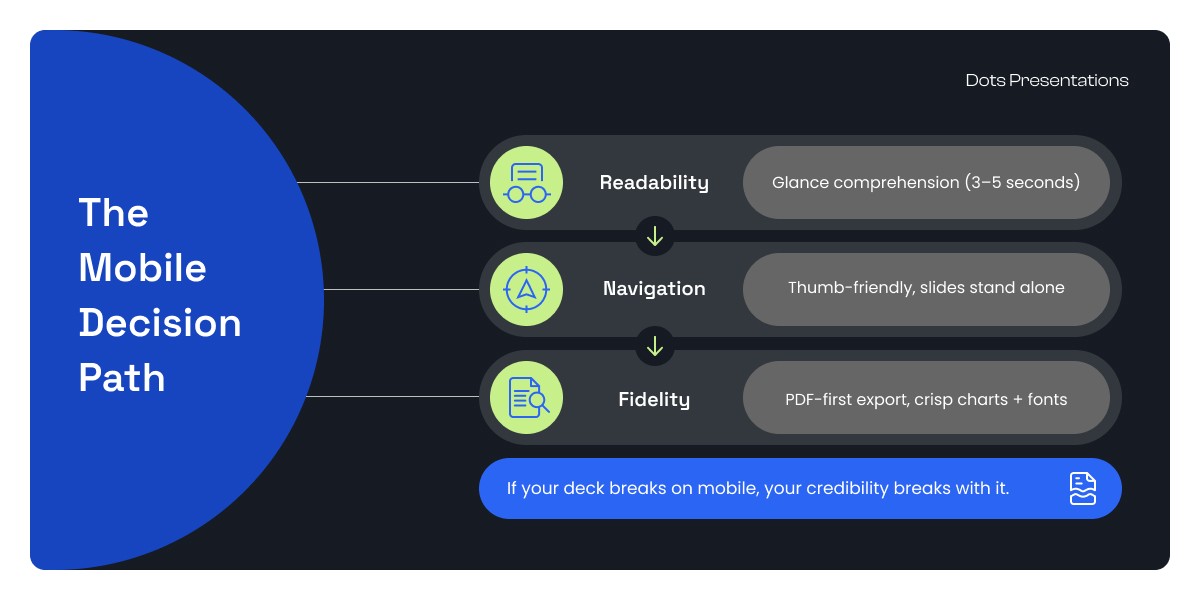
Rule 1: Design for Glance Comprehension, Not Reading
There's a reason most desktop slides fail on mobile, and it's not the font size. It's the premise. Slides built for desktop are built around the assumption that someone is sitting down, paying attention, and reading. Mobile viewers are doing none of those things.
If the audience can't get the takeaway in 3 to 5 seconds, they won't get it at all. And the culprit is almost always the headline. Compare these two:
Topic headline: "Q3 Performance"
Conclusion headline: "Q3 beat plan by 12% because retention improved in Segment B"
The second version works without the presenter. It works on a small screen. It gives someone something they can repeat to a colleague. One bold conclusion at the top, one supporting visual or two to three bullets max. If the headline alone doesn't communicate the "so what," rewrite it before you send the deck anywhere.
Rule 2: Use a Mobile Type Scale (And Stop Apologizing for Whitespace)
Fonts that look perfectly readable on a 27-inch monitor tend to collapse on a phone. The text doesn't just get smaller. It signals something: this is complicated, this wasn't thought through, this isn't for me.
The fix is a practical baseline you can apply to any deck:
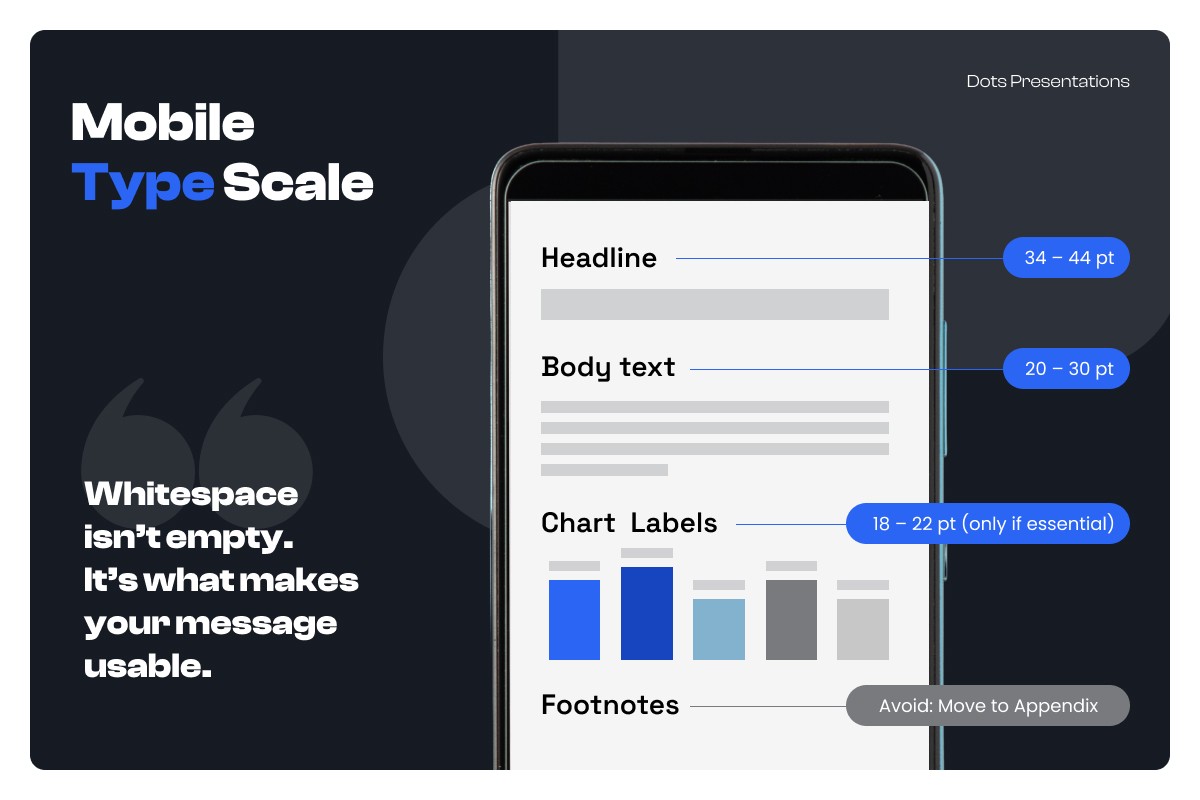
Headlines: 34–44 pt Body text: 24–30 pt Chart labels: 18–22 pt (only if essential) Footnotes: avoid; move to appendix or speaker notes
Whitespace isn't empty. It's what makes the message usable. On mobile, whitespace is doing active work: it reduces visual noise, increases scan speed, and makes the hierarchy legible at a glance. If you need to include more detail, put it behind a "Deep Dive" slide rather than squeezing it into the first one.
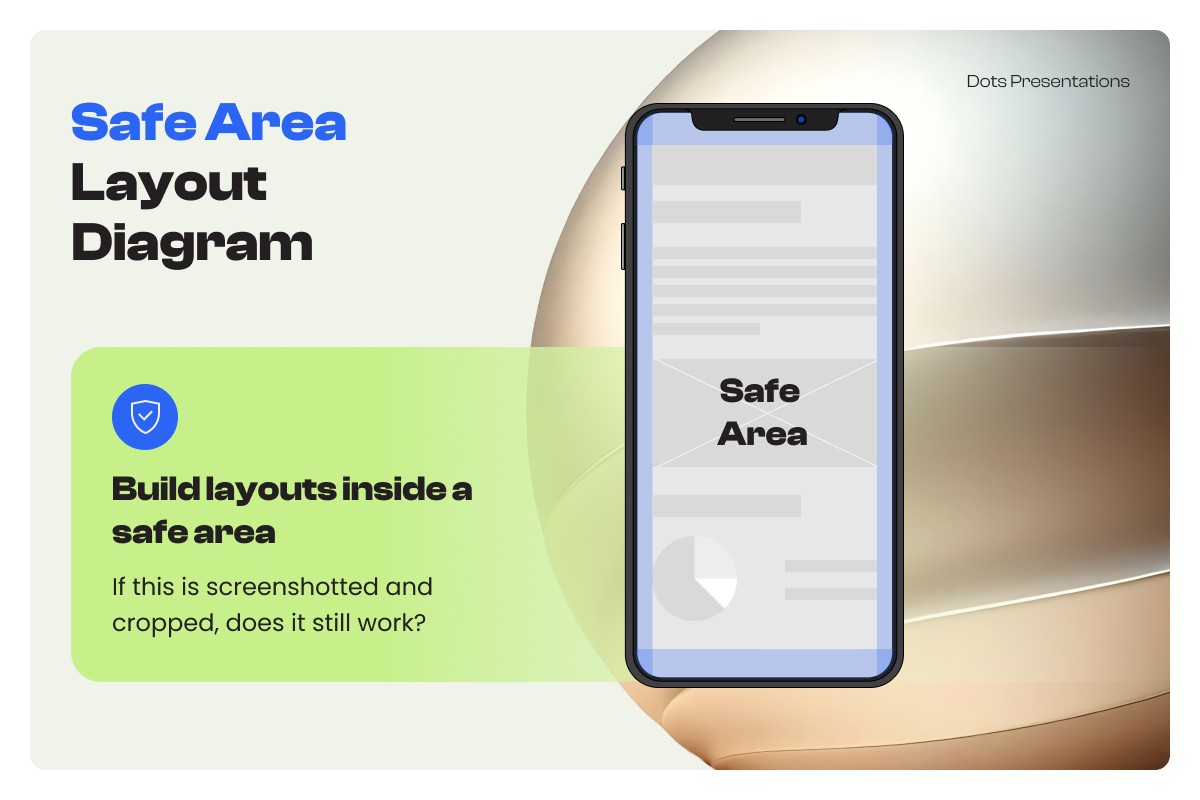
Rule 3: Build Layouts Inside a Safe Area
Content that hugs the edges of a slide looks fine on desktop. On mobile, UI chrome, screenshot cropping, and aspect ratio differences steal it. You lose words. You lose meaning. And edge-to-edge layouts feel fragile in a way that registers subconsciously.
The practical test: look at any slide and ask yourself, "If this is screenshotted and cropped, does it still work?" If the answer is no, the layout is too close to the edges.
Keep critical text and logos inside consistent margins. Build to a grid, not floating elements. When everything is anchored to a system, the deck feels deliberate on any screen size.
Rule 4: Replace Tables with Decision Visuals
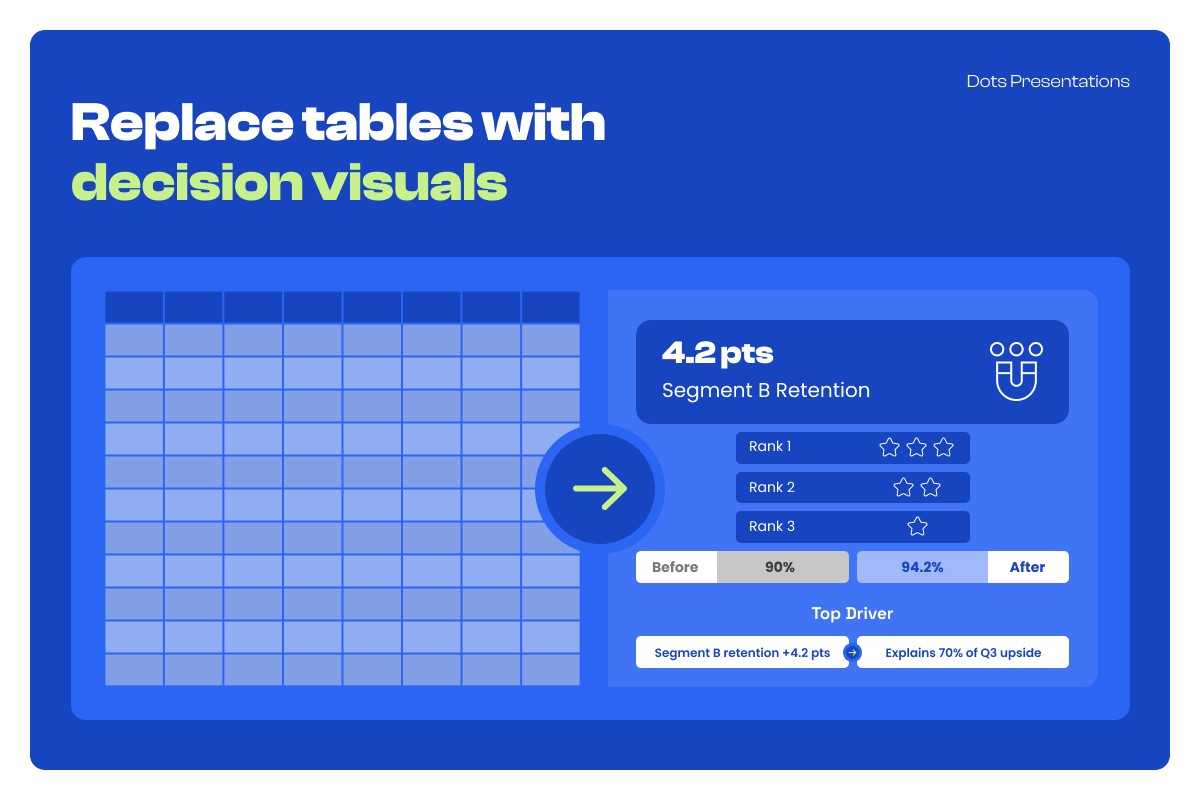
Tables are anti-mobile. They force zooming, scanning, and interpretation in sequence, three friction points before the viewer reaches any meaning. Paste a spreadsheet table into a slide and you've built a wall between your audience and your argument.
The solution is to convert table data into one of four mobile-friendly patterns:
Highlight card: one metric plus one implication Ranking list: top three only Before/after: two numbers, one delta Small multiples: two to three mini charts, not one monster table
Instead of showing 12 rows by 8 columns, show: "Top driver: Segment B retention +4.2 pts, explains 70% of Q3 upside." If someone needs the full table, it belongs in an appendix, not the main deck. The job of the slide is to make the decision obvious, not to document the analysis.
Rule 5: Design for Thumb Navigation
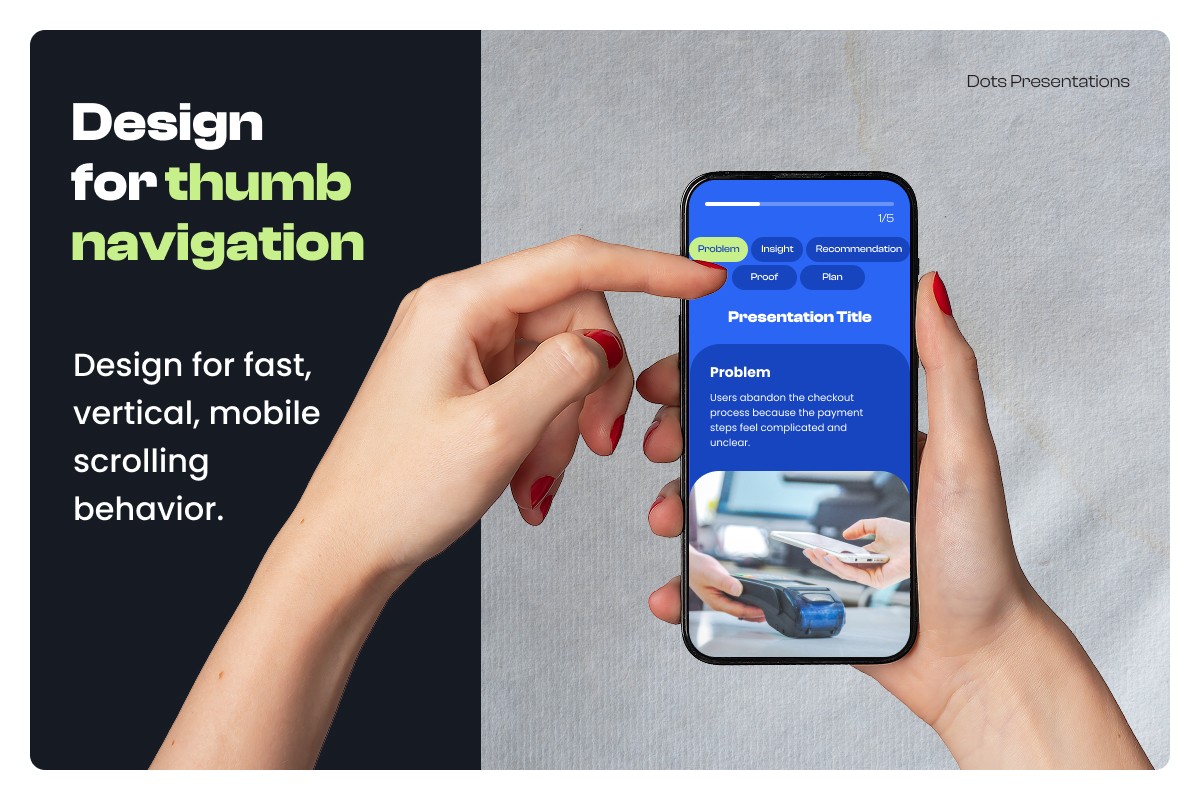
Most decks are built for linear presenting: slide 1 leads to slide 2 leads to slide 3. Mobile consumption doesn't work that way. Someone opens a forwarded PDF and jumps to what looks relevant. They go back. They skip ahead. If they land on slide 7 and can't immediately orient themselves, they've lost the story.
The fix is lightweight navigation cues built into the design itself:
Section labels ("Problem / Insight / Recommendation / Proof / Plan")
Progress indicators ("2/5") for key sequences
Slide titles that stand alone without needing context from previous slides
The goal is that any viewer can land anywhere in the deck and still know where they are, what the slide means, and what comes next. Slides that require sequential reading to make sense are slides that don't survive forwarding.
Rule 6: Export Like a Professional
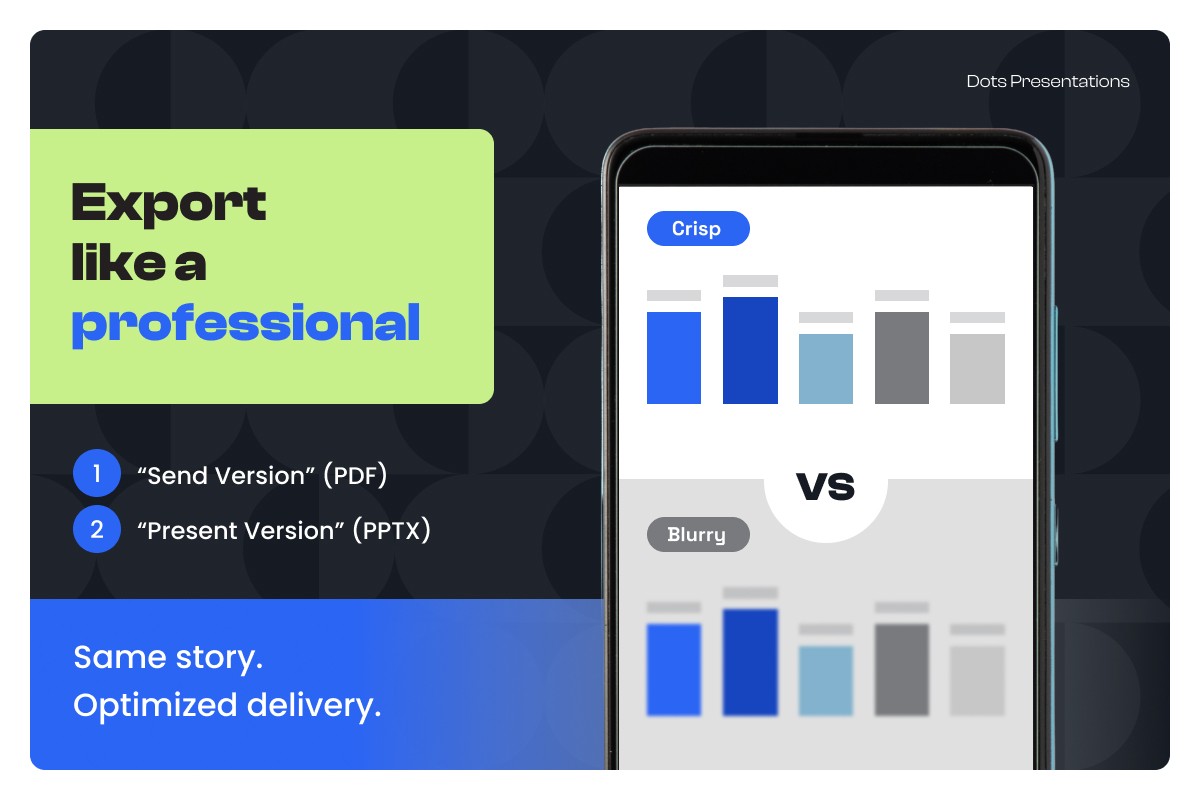
Most of the time, your deck arrives on someone's phone as a PDF, not a PPTX. That's the version being judged. If the export breaks, fonts swap, charts blur, and thin lines disappear, the credibility damage happens before anyone reads a word.
Four things to check before you send:
Export a high-quality PDF for sharing
Use embedded fonts or standard safe fonts
Avoid ultra-thin lines and tiny annotations
Check image compression so charts don't pixelate at small sizes
Keep two versions: a Send Version (PDF) and a Present Version (PPTX). Same story, optimized delivery.
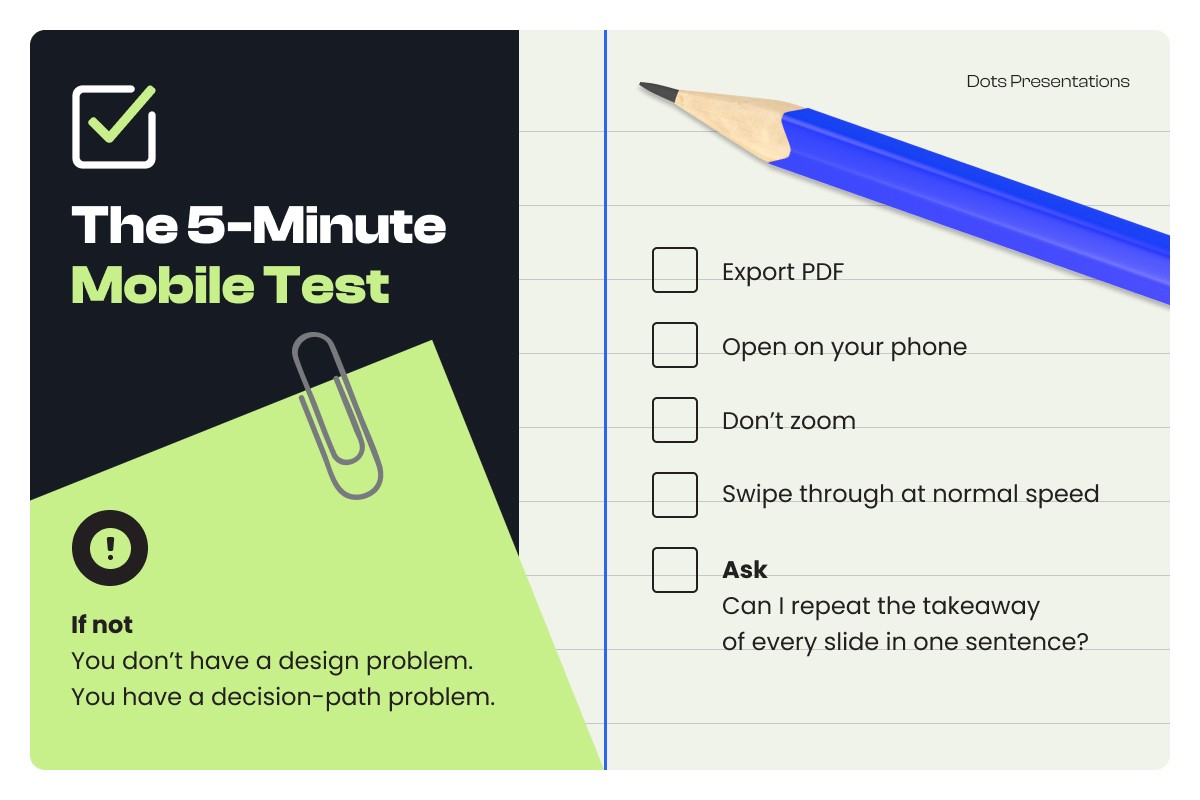
The 5-Minute Mobile Test
Before you send any deck, do this:
Step 1: Export PDF Step 2: Open on your phone Step 3: Don't zoom Step 4: Swipe through at normal speed Step 5: Ask: Can I repeat the takeaway of every slide in one sentence?
If not, you don't have a design problem. You have a decision-path problem. Fix the headline, simplify the visual, or split the slide. The test takes five minutes. What it catches would otherwise cost you the deal.
Conclusion
Mobile-friendly slides aren't smaller versions of desktop slides. They're clearer versions of your thinking.
When your deck works on a phone, it works anywhere. And it protects the only thing that really matters in the moments before someone decides to respond: credibility, clarity, and forward motion.
Use our Mobile Deck Audit Checklist to score your current deck across type scale, slide density, data formatting, and navigation. Or book a review and we'll show you exactly where mobile friction is costing you attention.